
How it works
Tự Thiết Kế Web user guide
From describing your idea to a published page that receives customer contacts – matching the current interface, on both computer and phone.
1. Sign-up & free credits
- Click Sign up, enter your email and password.
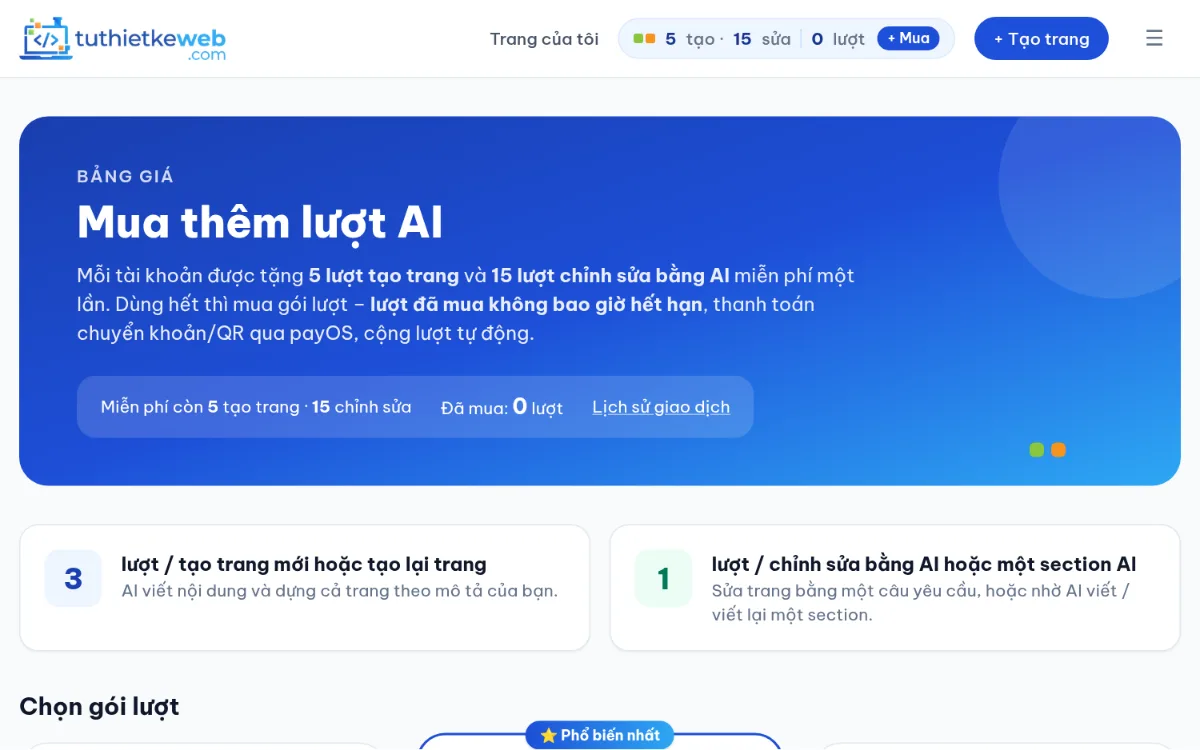
- Every account gets a one-time 5 page generations and 15 AI edits (not refreshed daily). Your remaining credits are always shown at the top (the Free … create · … edit | … creditsbox) and in My pages.
- Once the free credits are used, each page creation (or regeneration) uses 3 credits purchased, each AI edit or AI section uses 1 credits. Failed or cancelled AI requests are refunded.
2. Buy more credits
- Open Pricing (/mua-luot) or click + Buy at the top.
- Choose a pack, click Buy pack → payOS checkout page: scan the VietQR code with your banking app or transfer with the exact reference.
- Credits are added automatically as soon as the payment succeeds and never expire. Review all transactions in Transaction history.
3. Create a page with AI
- Go to My pages → click + Create new page.
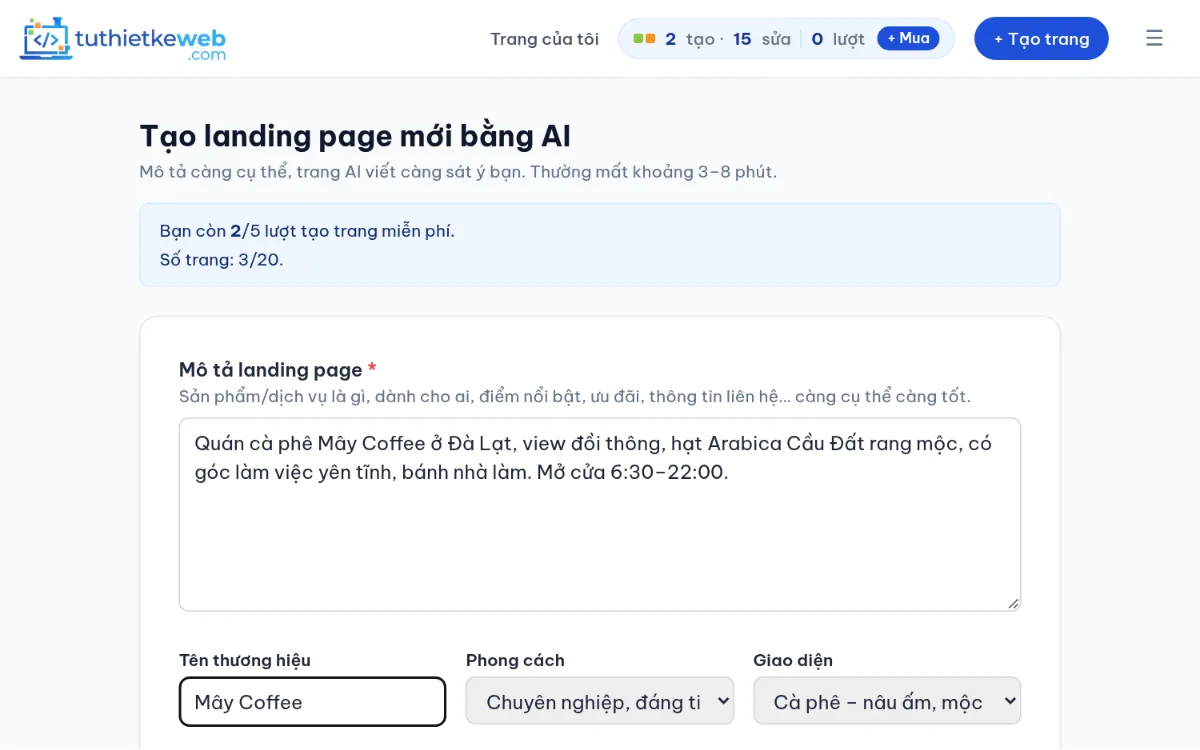
- Describe your product/service, offers, opening hours and contact details (the AI only uses phone numbers, emails and addresses found in your description). You can choose the style, design, content language and sections.
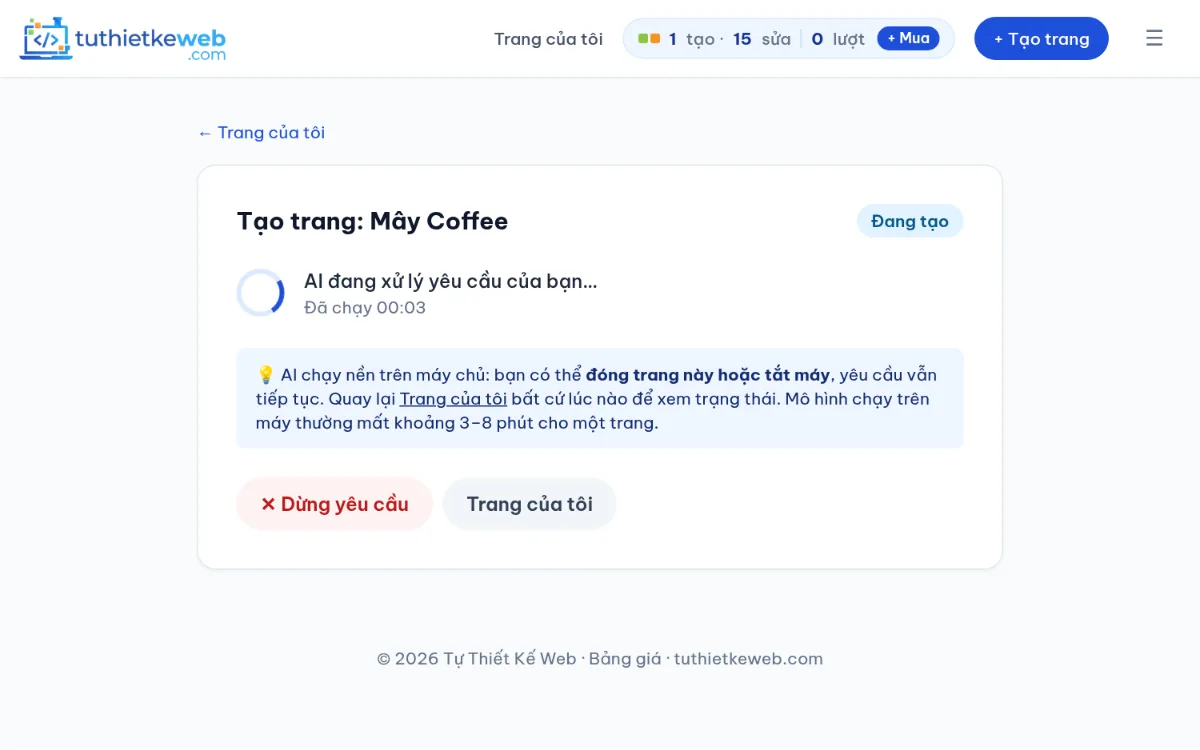
- Click ✨ Create page. The AI runs in the background on the server, usually about 3–8 minutes – you can close the tab; progress appears in My pages. When done, the page opens in the editor.
4. Editor (desktop)
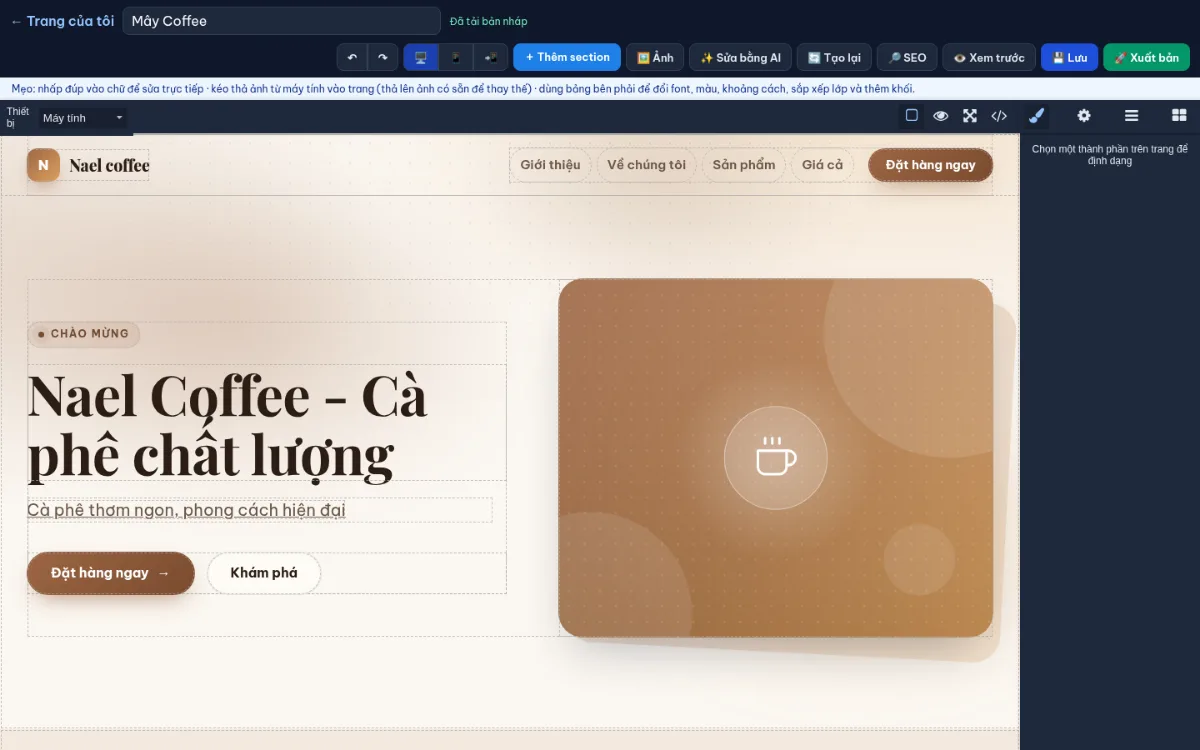
- Edit text: double-click text on the page and type directly; a small toolbar offers bold, italic and links.
- Replace images: double-click an image, or drag an image from your computer onto an existing one. The 🖼 Images button opens your uploaded image library.
- Right panel: 🖌 Style (font, color, spacing, corner radius…), ⚙ Properties (links, image descriptions, video, map, countdown date), ☰ Layers (page structure).
- ↶ / ↷ undo – redo; the page saves automatically a few seconds after each change, or click 💾 Save (Ctrl/⌘+S). 👁 Preview opens the draft in a new tab; the 🖥 / 📱 / 📲 buttons change the viewport.
5. Section & block library
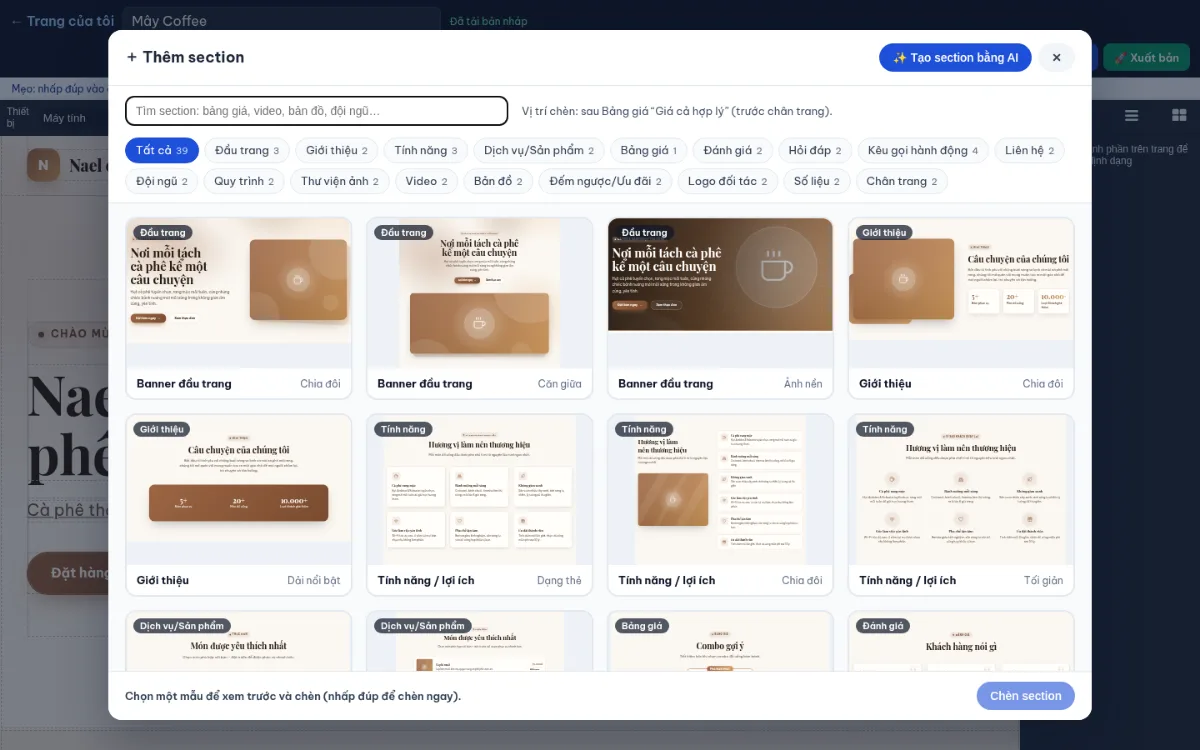
- Hover (or tap) near the boundary between two sections to show the + Add sectionbutton, or click the + Add section button in the top bar (inserts after the selected section).
- Pick a category or search by keyword in the library of 46 templates (pricing, video, map, team, FAQ…), preview it with your page's colors and fonts, then click Insert section. You can also add it to the navigation menu.
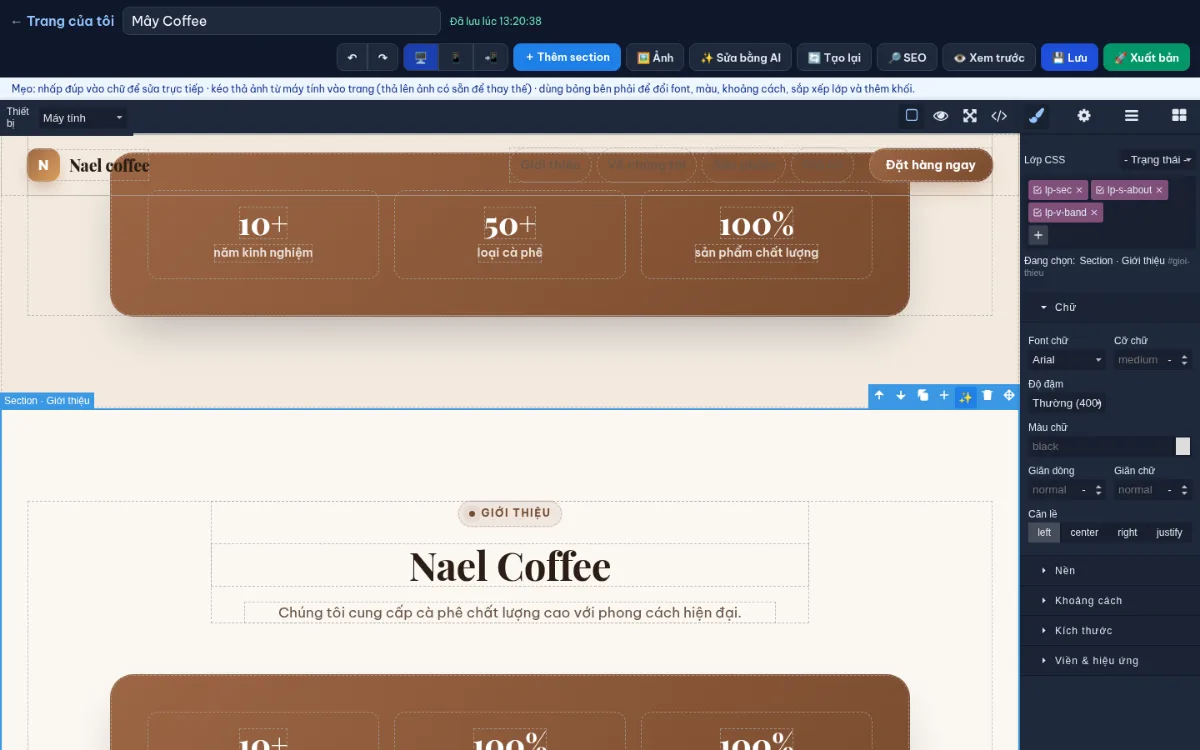
- Select a section to use its own toolbar: up/down, duplicate, add a section below, ✨ rewrite with AI, delete.
6. Edit with AI & section AI
- ✨ Edit with AI: write a one-sentence request, e.g. “Change the main color to green”, “Rewrite the headline to highlight the 20% offer”. The result is applied when the AI finishes; the previous version is kept so you can ↩ Restore.
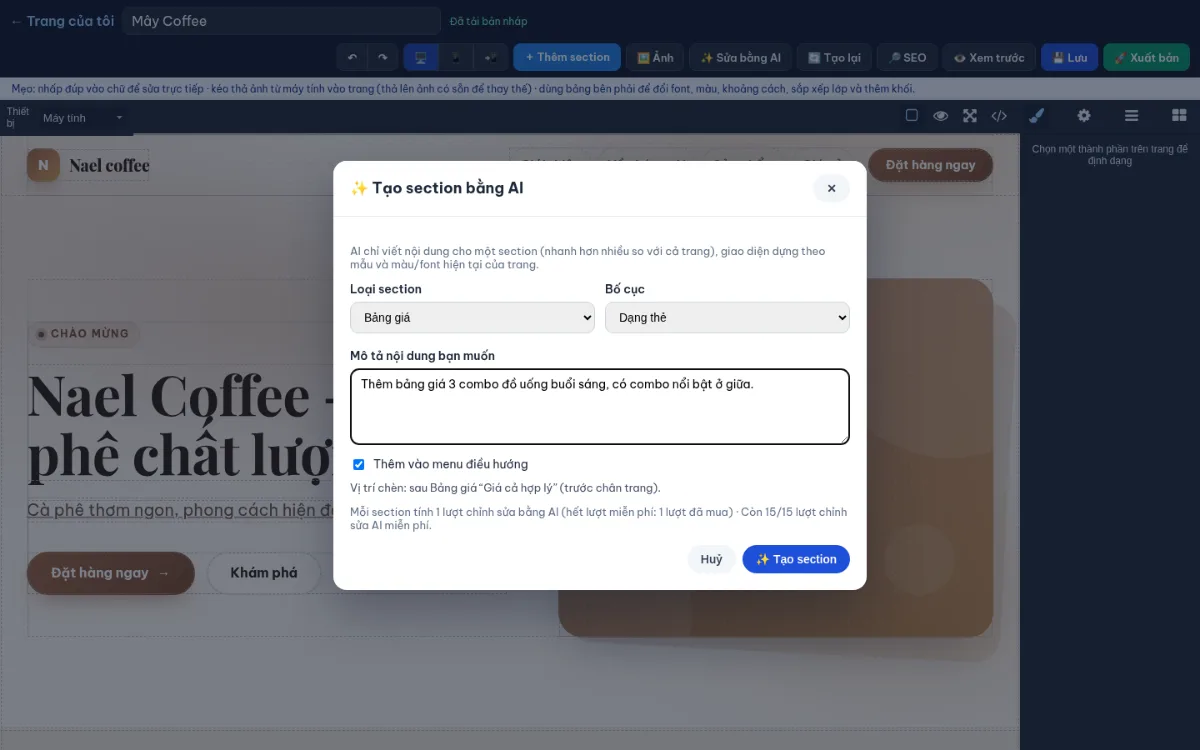
- ✨ Create a section with AI (in the section library) or ✨ on the section toolbar: the AI writes just one section in your page's colors/fonts, in about 1 minute, inserted in the right place.
- 🔄 Regenerate rebuilds the whole page from the original description (uses a page generation credit).
7. Editing on a phone
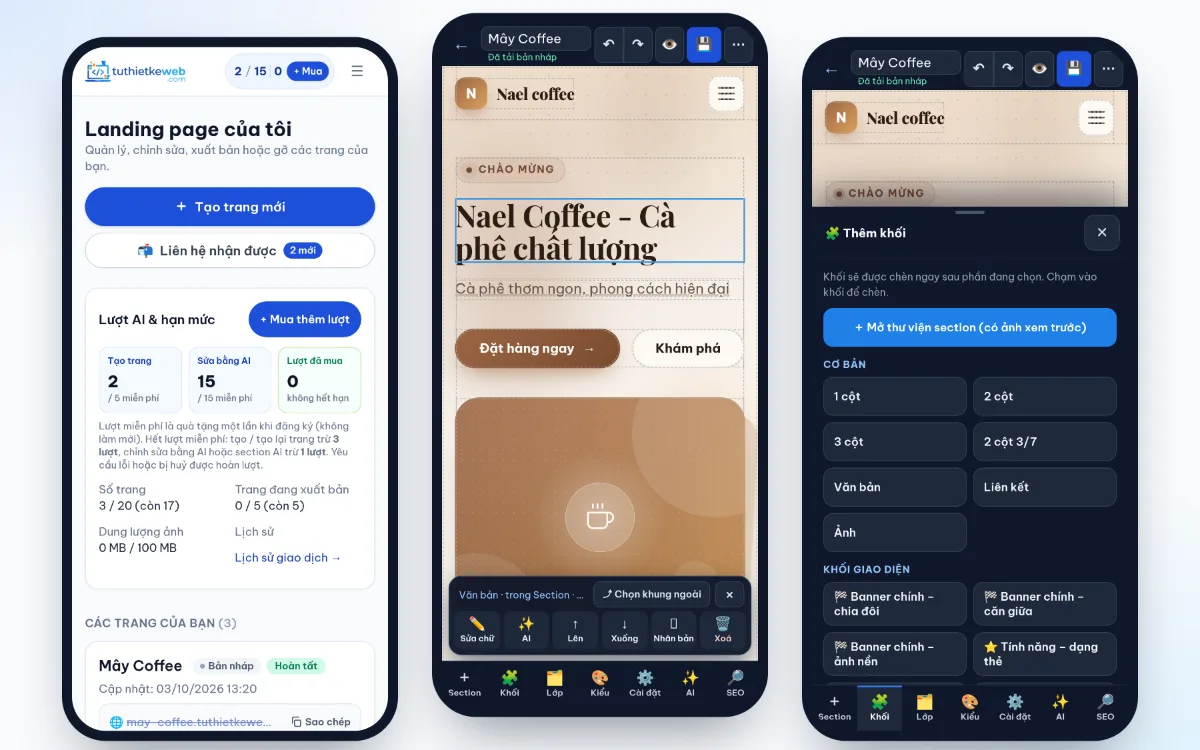
On screens narrower than 768px the editor switches to a phone layout; the default viewport is Mobile:
- Top bar: ← back to My pages, page name, ↶ ↷, 👁 preview, 💾 Save, and ⋯ for Publish, Images, Edit the whole page with AI, SEO, viewport.
- Tap text or an image to select it → a floating action bar: ✏️ Edit text (type with the phone keyboard, tap ✓ Done when finished), 🖼 Change image, ✨ AI, ↑ ↓ move, + Section, ⧉ duplicate, 🗑 delete, “⤴ Select parent”.
- Bottom tab bar: + Section (library), 🧩 Blocks (tap a block to insert it right after the selected part, or at the end of the page if nothing is selected), 🎨 Style, ⚙️ Settings, 🗂 Layers, ✨ AI, 🔎 SEO. Each panel has a ✕ button to close.
- In the 🎨 Style panel, choose Apply to: All devices or Phone only.
8. SEO & share images
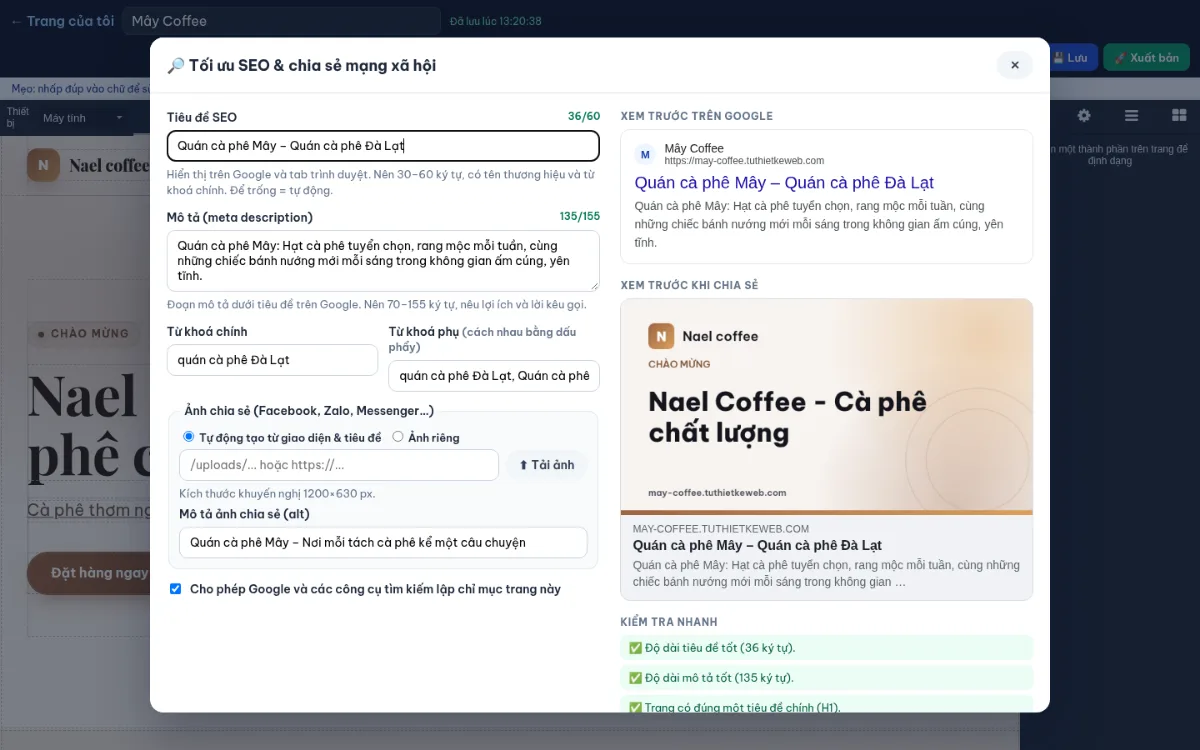
Click 🔎 SEO: edit the title, description, keywords, share image (generated automatically or upload your own 1200×630) and allow indexing. The panel previews the result on Google and Facebook/Zalo and runs quick checks (H1, image descriptions…). SEO changes apply to the public page when you click Publish.
9. Publish
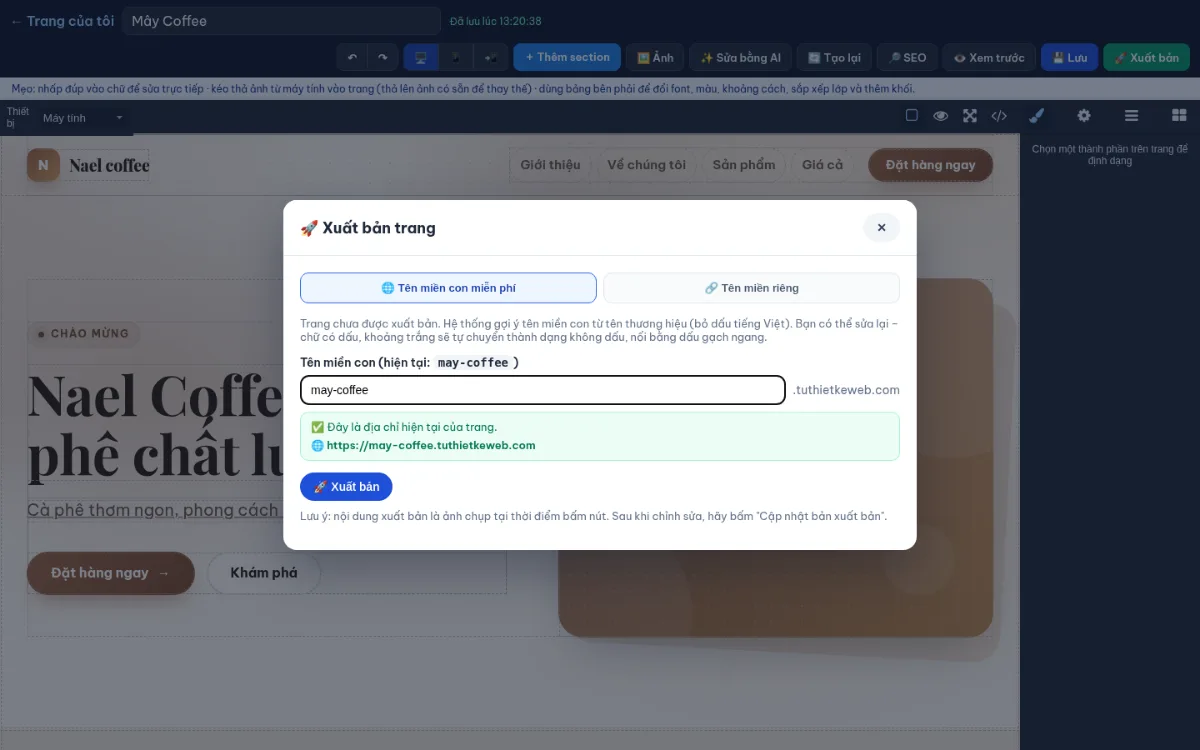
- Click 🚀 Publish (in the editor, or on the page card in My pages).
- Tab Free subdomain: enter a name, for example
may-coffee→ the page will be athttps://may-coffee.tuthietkeweb.com(with HTTPS). The system tells you right away whether the name is available and suggests alternatives. - After further edits, click Publish again to update the public version. To hide it temporarily: My pages → ⋯ More → Unpublish.
10. Connect a custom domain
- In the Publish dialog, open the Custom domaintab, enter your domain (e.g.
www.maycoffee.vn). - In your DNS manager, add the verification TXT record as shown, and a CNAME record pointing to
custom.tuthietkeweb.com. - Click Check DNS. When the status is Active, the page runs on your domain (HTTPS issued automatically). DNS can take a few minutes to a few hours to update.
11. Overview & Analytics
After signing in you land on Overview: views, visitors, contacts, conversion rate and button clicks over 7 days (compared with the previous 7 days), latest contacts, per-page numbers, remaining AI credits and a to-do list (publish, add a contact form, SEO, custom domain).
The Analytics page (/thong-ke) shows 7 / 30 / 90 days or a custom range, for all pages or one page: daily chart, top pages, traffic sources (Facebook, Google, Zalo…), UTM campaigns, devices, browsers, countries and Call / Zalo / Messenger / email clicks.
- Add UTM tags when sharing to see which channel brings customers, for example
https://ten-trang.tuthietkeweb.com/?utm_source=zalo&utm_medium=social&utm_campaign=khai-truong. - Privacy-friendly: no tracking cookies, no stored IPs – visitors are counted with an anonymous ID that changes daily. Bots and your own views (while signed in, or when opening the page from “My pages”) are not counted.
- Detailed data is kept for 90 days, then aggregated by day and kept long term.
12. Received contacts
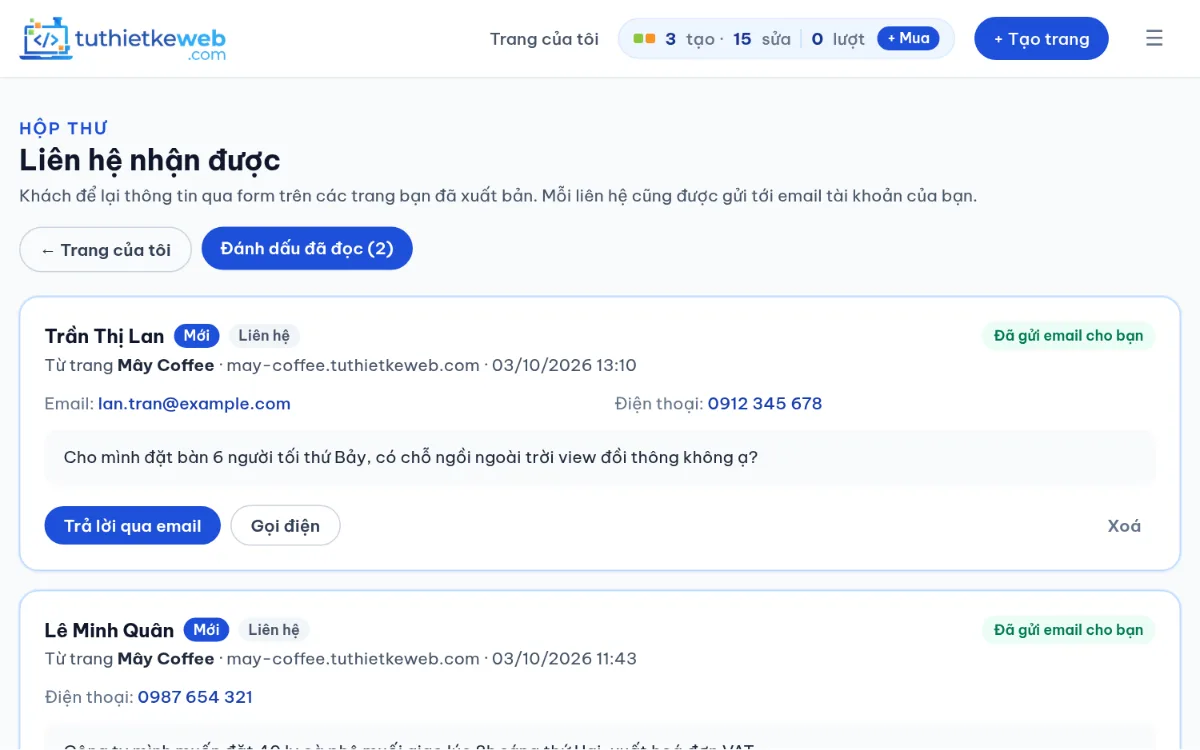
When a visitor submits the contact form on a published page, the message is stored in Contacts (/lien-he-nhan-duoc) and sent to your account email. The number of new messages appears in the navigation bar.
- Filter by page, status (New / Read / Handled / Spam) and date range; search by name, email, phone number or message.
- Open a contact to see all details and click Reply by email, Call or Message on Zalo; mark it Handled once you've followed up.
- Select several contacts to mark / delete them at once; click Export CSV to open it in Excel (Vietnamese characters preserved).
13. New-lead alerts via Telegram
Turn on Telegram to get an instant phone alert when a visitor submits a form on your published page (name, phone, message). Email and the Contacts inbox keep working as before.
- Go to Account settings → section New-contact alerts via Telegram.
- If you see the Connect Telegram button: click it, Telegram opens the Tự Thiết Kế Web bot, tap Start. When the bot replies “Connected”, you're done. The link works once within 30 minutes.
- To use your own bot (or alert a group): create a bot with @BotFather using
/newbot, open the bot and tap Start, then paste the bot token into Bot token and click Save & send test. - Click 📨 Send test to check; click Disconnect when you no longer want alerts.
No alerts? Make sure you haven't blocked the bot and the page is published (previews don't submit forms), then try “Send test”.
14. Use an industry template
Don't want to start from a blank page? Each industry has a guide page (for example landing page for spas) and a ready-made template with sample content.
- Open your industry page or the template gallery, click View demo to preview.
- Click Use this template: a draft is created right away in My pages (no AI credits for regular templates; Premium templates show their credit cost).
- Replace the name, prices, address, phone and photos with your real details – the sample business is fictional.
- Publish, then turn on Telegram lead alerts so you never miss an order.
15. Selling & getting paid via VietQR
Turn your page into an order form: customers pick items, the total is calculated automatically, and a VietQR code shows the exact amount with the order code as the transfer note. No fee per order.
- Go to Account → Selling, choose your bank, enter the account number and account holder name (uppercase, no accents, exactly as in your banking app).
- Choose a page and enter one item per line in the form
Tên món | 45000 | ghi chú, then click Save item list. - Your published page will show a 🛒 Order now button in the bottom-left corner (after about 1–2 minutes).
- After ordering, customers see the QR code; you get an email and a Telegram message (if you have connected Telegram).
- Check your banking app: if the amount and order code match, change the status to Paid, and once delivered to Delivered.
Note: the system cannot read your bank account, so it never confirms payment automatically – you always confirm it. Place a small test order before sharing your page.
16. Create a page from a menu / price list photo
Already have a paper menu, price list or fanpage? No need to retype – AI reads it and writes the landing page.
- Go to Create from menu photo, choose 1–3 menu / price list photos (straight, well lit, sharp text) and/or paste your fanpage About text.
- Click Let AI read it – this step uses no credits (up to 10 times in 24 hours) and usually takes 1–5 minutes.
- Review the name, industry, phone, opening hours, address and every item / price – fix anything AI misread.
- Click Create page (1 credit): AI writes the page in the chosen industry template's design. If the option is on, the items are also added to the Selling.
Note: we don't open links or pull data from Facebook – copy your fanpage's About section and paste it in. Photos are only used for reading and are not kept. If AI can't read them, retake clearer photos or paste the text.
17. AI assistant answering visitors on your page
Visitors asking about prices, opening hours or delivery fees while you're busy? Turn on the assistant so your page answers by itself – only from what you published, never invented prices.
- Go to Account → AI assistant, pick a published page and tick Turn on the assistant for this page (off by default).
- Add anything the page doesn't say, one point per line: delivery fees, opening hours, returns, deposits… then click Save.
- Your page gets a 💬 Ask us bubble in the bottom-left corner (above the Order button if there is one). Click Trial to ask a few questions like a visitor.
- When the assistant has no information, it says so and asks the visitor for a name and phone number. You receive the lead in Received contacts, by email and on Telegram (if you have connected Telegram).
Cost: answers don't use your page-creation credits. To prevent spam, each visitor and each page has a question limit; when the AI is busy, the assistant says so and asks visitors to leave a number. It replies in Vietnamese or English depending on the page language.
18. Create ads from your page
Have a page but not sure what to post? One button drafts shareable posts – written from your page's own content, with the page link, no invented prices or promotions.
- Go to Account → Ads, pick a published page, click Create ads and wait about 1–3 minutes.
- You get 3 Facebook captions, a ~30-second TikTok / Reels script (hook, scenes, call to action) and a 1080×1080 square image.
- Read it and edit it into your own voice, click Copy to paste it, click Download image to save the image.
Cost: no page credits used, up to 5 kits per 24 hours. Sentences with prices or numbers not on your page are dropped; when the AI is busy, missing parts are filled from a template based on your page title. The image only uses your name, theme colors and images you uploaded yourself. Posts follow your page language (Vietnamese / English).
19. Page stats & improvement tips
See how well your page is doing and what to fix – based on your page's real numbers, no guessing.
- Go to Account → Improvement tips, pick a page and a 7 or 30 day range.
- See views, visitors (approx.), button clicks, contact forms, assistant questions, Order clicks → orders → paid, devices, scroll depth and traffic sources. Conversion rate = (contact forms + orders) / visitors.
- Read the Improvement tips section: each tip shows its numbers and a button to the place to fix. You can click Ask AI to explain for a short explanation (uses no credits).
- Tips only appear with enough data: at least 50 views (30 scroll events for the mobile tip, 10 Order clicks or 5 orders for shop tips). Below that, the page says clearly that there isn't enough data yet.
- Examples: many views but few clicks → move the button up and make it clearer; mostly mobile with little scrolling → shorten the top section; no contacts yet → add a call / message button or turn on the AI assistant; many Order clicks but few orders → check prices and the QR code.
- Privacy: no tracking cookies for visitors, no IPs stored, bots and your own visits aren't counted. The counting script is tiny and sends when the visitor leaves, so it doesn't slow your page.
20. Need something custom?
We take custom design & development of websites and web/mobile apps. See the Custom design section and send your project description via the contact form on the home page – we reply by email.
21. Quick info & automatic contact buttons
The Create page has a "Quick info" box: pick your industry, then fill in address, opening hours, phone, Zalo and Facebook. Restaurants, spas and shops also get a menu / services / products box with prices (one item per line).
- The AI uses this information verbatim (it does not change prices or invent phone numbers).
- If the address or phone is missing, you are asked exactly one question. Answer it or click "Skip and create".
- The new page gets floating Call / Zalo / Messenger / Directions (Google Maps) buttons from what you entered. Change or remove them in the editor → Page settings.
22. Table / appointment booking form
Visitors pick a date, time and party size and leave their name and phone. Requests arrive in your contact inbox, your email and Telegram (if connected), like the contact form.
- New page: in Quick info pick Restaurant / café or Spa / beauty and "Add a booking form" is ticked for you.
- Existing page: in the editor open the section library, choose "Contact – Booking", then Publish.
- Call the customer back to confirm: the system does not hold seats or check availability.
23. Weekly email report
Every Monday morning, if you have a published page, we email a summary of the last 7 days: views, visitors, contacts / bookings and clicks on the Call / Zalo / Directions buttons, compared with the week before, plus numbers per page.
- The report is on by default. Turn it off or back on in Account settings → Weekly email report, or click "Tắt báo cáo tuần" at the bottom of the email.
- Requires a confirmed email. The numbers match the Analytics section – see the daily details there.
25. Print a QR code for your shop
Create a printable QR sheet that opens your published page (using your custom domain if it's active) – stick it on your counter, tables or window.
- Go to My pages and on a published page tap "⋯ More" → "🖨 Print QR code".
- Pick a caption (see menu, book, contact…) then tap "Print now" – A5 or A4.
- Scans show up in Analytics with source "qr", separate from Facebook and Zalo visits.
26. Publish reminder email
If a page has been ready for over 24 hours but isn't published, customers can't see it yet. We send one reminder email with a button to open the editor – only once per page, between 8am and 8pm.
- The reminder follows the "Email me when AI is done" switch in Account settings; turn it off or use the link at the bottom of the email to stop receiving it.
- Only pages created in the last 7 days are reminded, and only for accounts with a confirmed email.
27. First-publish bonus
The first time your account publishes a page, you get extra free AI edits to polish it – the bonus amount is shown on My pages before you publish.
- Click 🚀 Publish on the page you want to put online – the dialog confirms how many edits were added.
- Each account gets it once. Unpublishing and publishing again does not add more.
28. Seasonal templates
The template gallery has seasonal templates: Tết gifts, mooncakes and weekend deals. Each comes with prices, FAQ and an order / table-booking form.
- Open the template gallery, pick a template tagged "Seasonal" and click "Use this template" to create a free draft. /mau
- Edit names, prices and your real order deadline, then publish. When prices change, use "Quick price edit".
- When the season ends, unpublish or change the content so nobody orders by mistake; next year duplicate the page and publish again.